Your blog’s theme is the first thing a visitor notices, long before they read a single word you wrote. A clean, fast theme makes people stay; a cluttered one sends them straight back to Google. The good news is that learning how to change blogger theme settings is one of the easiest jobs in all of blogging. It takes about five minutes, it costs nothing, and you do not need to touch a line of code.
I changed my own blog’s theme three times in the first year. The first time I was nervous and backed everything up twice. The third time I did it between two cups of tea. This guide walks you through the same simple process I use now, including the backup step most beginners skip and later regret. If you follow it in order, you will know exactly how to change blogger theme options safely, preview the result before anyone else sees it, and roll back in seconds if you change your mind. By the end, knowing how to change blogger theme settings will feel as routine as publishing a post.
Table of Contents
What Is a Blogger Theme, Really?
A theme is the design skin of your blog. It controls the layout, the colors, the fonts, the size of your headings, and where things like your sidebar, menus, and footer sit on the page. Your posts, pages, images, and comments live separately from the theme, so changing the theme does not delete your content. That one fact calms most beginners down, and it is true — but a theme change can still hide widgets, move your menu, or break a custom gadget you added years ago. That is why the backup step matters.
Blogger ships with a set of built-in themes with names like Contempo, Soho, Emporio, Notable, and Essential. Each one comes in a few color and layout variations. Beyond those, thousands of free and paid themes exist on other websites, and you can upload any of them as an XML file. For a first change, though, a built-in theme is the safest choice. You can always switch again later, and each time you learn how to change blogger theme designs, the next switch gets easier.
Think of it like repainting a room. The furniture stays where it is, but the whole place feels different. Learning how to change blogger theme designs is mostly about picking the right paint and testing it on one wall before you commit to the whole room.
Before You Change Anything: Back Up Your Current Theme
This step takes thirty seconds and it is the most valuable advice in this whole article. Before you learn how to change blogger theme settings, save a copy of the theme you already have. If the new theme looks wrong, or a widget disappears, the backup lets you go back to exactly how things were.
Here is how to do it. Sign in to Blogger, open the blog you want to change, and click Theme in the left menu. Under your current theme, click the small down arrow next to the Customize button. Choose Backup, then click Download theme. Blogger saves an XML file to your computer. Keep that file somewhere safe — your desktop or a folder with your other blog files — and name it with today’s date so you can find it later, for example my-theme-backup-nov-2026.xml.
I keep one backup from before every theme change, and I have needed them twice. Once, a new theme pushed my sidebar below my posts on mobile phones. Once, my email signup box vanished completely. Both times the backup fixed everything in under a minute. Do not skip this step, even if you are in a hurry. Thirty seconds now saves an evening of panic later, and it is the single most important part of learning how to change blogger theme designs without stress.
How to Change Blogger Theme in 5 Simple Steps
Now for the main event. Once your backup is saved, here is how to change blogger theme designs using one of Blogger’s built-in themes. The whole process takes about five minutes, and once you have done it once, you will remember how to change blogger theme options without looking at a guide at all. Google’s own Blogger Help page on themes describes the same steps, if you ever want to double-check them against the official source.
Step 1: Open Your Blogger Dashboard
Sign in at blogger.com with the Google account that owns your blog. If you run more than one blog, click the small down arrow at the top left and pick the blog you want to change. You are now on that blog’s dashboard, and everything from here happens in the left-hand menu.
Step 2: Go to the Theme Section
In the left menu, click Theme. You will see a preview of your current theme at the top of the page, with buttons underneath it. This page is the control room for your blog’s design, and it is where every theme change starts. If you have never opened it before, take a moment to look around — nothing here changes your live blog until you click Apply.
Step 3: Browse the Available Themes
Scroll down and you will see Blogger’s theme gallery. Each theme shows a preview image, and clicking it opens a larger preview. Take your time here. Click through Contempo, Soho, Emporio, and Notable at least, because they look very different from each other. Contempo is clean and magazine-like. Soho is bold and image-heavy. Emporio is minimal and elegant. Notable is built for long-form writing.
While you browse, think about your readers, not just your own taste. A food blog needs big photos. A personal diary needs readable text. A news-style blog needs a clear list of recent posts. The best theme is the one that makes your content easy to enjoy, not the flashiest one in the gallery. This is also the moment to decide what you want the new design to do for your readers, because that decision shapes how to change blogger theme choices later, when you customise colors and layout.
Step 4: Preview the Theme on Your Own Blog
This is the step that separates a careful blogger from a careless one. When you find a theme you like, click on it and choose Preview. Blogger opens a preview of your real blog — your posts, your photos, your sidebar — dressed in the new theme. Click around. Open a post. Check the homepage on your phone as well as on your computer, because more than half of most blogs’ readers arrive on mobile.
Look for three things in the preview. First, can you read the text easily, or is the font too small or too pale? Second, do your images still look good, or are they cropped in strange ways? Third, are your menu, sidebar, and footer still where you expect them? If anything looks off, close the preview and try another theme. Previewing costs nothing, and it is far better than applying a theme and apologising to your readers later. In my experience, the preview step is what makes learning how to change blogger theme settings feel safe instead of scary.
Step 5: Apply the Theme
When a theme looks right in the preview, click Apply at the bottom of the screen. That is the whole job. Your blog now wears the new theme, and every visitor sees it immediately. Open your blog in a fresh browser tab and look at it with fresh eyes, the way a first-time visitor would. If you are happy, you are done. If you are not, the next section shows you how to change blogger theme settings further, and the restore section shows you how to go back. Either way, you now know how to change blogger theme designs from start to finish.
That is how to change blogger theme designs in five steps. No code, no plugins, no waiting. Most beginners are surprised at how quick it is, and that is exactly how Blogger designed it to be.
How to Change Blogger Theme Colors, Fonts and Layout
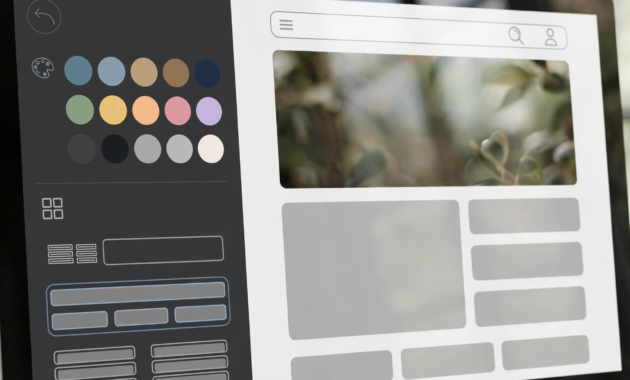
Applying a theme is only the beginning. Every Blogger theme can be customised, and this is where your blog starts to look like yours instead of like everyone else’s. The customizer is the tool for this job, and learning how to change blogger theme colors and fonts inside it is almost as easy as applying the theme itself.
Go to Theme in the left menu, and under your current theme click Customize. A panel opens on the left side of the screen with your blog previewed on the right. Every change you make shows up in the preview instantly, and nothing goes live until you click Save in the bottom right corner. That safety net means you can experiment freely.
Start with the background. You can pick a solid color, upload a background image, or leave it plain white, which is honestly the best choice for most blogs because it keeps the focus on your writing. Next, look at the layout options: Blogger lets you switch between one, two, and three-column layouts, and move the sidebar from the right to the left. A single-column layout with no sidebar reads beautifully on phones, while a two-column layout gives you room for popular posts and social links.
Then come the fonts and colors. Under the Advanced section of the customizer, you can change the font, size, and color of your blog title, your post titles, your body text, and your links, each one separately. My rule is simple: pick one font for headings and one for body text, and never use more than two. Pick one main color for links and buttons, and use it consistently. Blogs that use five fonts and seven colors look messy, no matter how good the writing is.
One warning about the customizer: do not forget to click Save. I have lost a beautiful color scheme twice by closing the tab without saving, and there is no undo. Change one thing, look at the preview, save, and then change the next thing. Slow and saved beats fast and lost. Once you are comfortable with the customizer, you will find that knowing how to change blogger theme colors is the skill that makes a free Blogger blog look like a site someone paid a designer to build.
How to Change Blogger Theme to a Custom Template
Sooner or later, the built-in themes start to feel limiting, and that is when bloggers look at custom templates from other websites. A custom template is a theme someone else designed, and you upload it to Blogger as an XML file. This is still a beginner-friendly job, but it has one extra risk: a bad template can slow your blog down or break your layout, so only download templates from websites you trust, and always back up your current theme first.
Here is the process. Find a template you like and download its XML file to your computer. In Blogger, go to Theme, click the down arrow next to Customize, and choose Restore. Click Choose file, pick the XML file you downloaded, and click Upload. Blogger installs the template, and your blog changes to the new design immediately.
After uploading a custom template, check your blog carefully. Open the homepage, open a post, and open it on your phone. Custom templates sometimes hide Blogger’s own gadgets, like the search box or the archive list, and sometimes they add advertising space of their own. If anything looks wrong, restore your backup XML file the same way, and you are back where you started. This is the one place where learning how to change blogger theme files from outside sources needs extra care, because a template you did not design can contain surprises.
A word of honesty here: most beginners do not need a custom template. The built-in themes, once customised with your colors and fonts, look professional and load fast. Custom templates are worth it when you have a specific look in mind that the built-in themes cannot give you — a magazine homepage, a portfolio grid, or a shop-style layout. Until then, keep it simple, and keep practising how to change blogger theme settings with the built-in options first.
How to Change Blogger Theme Back If You Don’t Like It
Changed your mind? No problem. Knowing how to change blogger theme settings includes knowing how to undo a change, and Blogger makes this easy in two ways.
The first way is to simply pick another theme and apply it, using the same five steps above. You can change themes as often as you like, and your posts are never affected. The second way is to restore your backup. Go to Theme, click the down arrow next to Customize, choose Restore, pick the XML backup file you downloaded before the change, and upload it. Your old theme returns exactly as it was, including your old colors and layout settings.
I recommend the backup route when you have spent time customising a theme — changing its colors, fonts, and layout — because applying a different built-in theme throws those customisations away, while restoring a backup brings them back. Keep your backup files dated and stored safely, and this whole process stays stress-free. That is the full answer to how to change blogger theme designs and how to undo a change you regret.
7 Mistakes to Avoid When You Change Your Blogger Theme
Most theme disasters come from the same small list of mistakes. Here they are, so you can skip them all.
- Changing the theme without a backup. I have said it three times in this article and I will say it once more: back up first. It takes thirty seconds.
- Picking a theme for its demo, not your content. Theme previews use perfect photos and short headlines. Your blog has your photos and your headlines. Preview every theme with your real content before you apply it.
- Ignoring the mobile view. Over half of blog readers use phones. A theme that looks gorgeous on a laptop can be unreadable on a phone. Always preview on mobile.
- Installing a custom template from a shady website. Free template sites sometimes hide extra links, pop-ups, or even malicious code in their files. If a site looks untrustworthy, walk away.
- Changing everything at once. New theme, new colors, new fonts, new layout, new widgets — all in one evening. When something breaks, you will have no idea which change caused it. Change one thing at a time.
- Forgetting to check your widgets. Themes can hide or move widgets like your search box, popular posts, or contact form. After every theme change, scroll your whole blog and check that every widget is still there and working.
- Chasing trends instead of readability. Dark themes, tiny fonts, and fancy animations look exciting for a week and tiring forever after. Your readers came for your content. Give them a design that gets out of the way.
Avoid these seven, and learning how to change blogger theme designs stays the pleasant, low-risk job it should be.
How to Pick a Theme That Fits Your Blog
If you are stuck choosing between themes, this table should help. Match your blog type to the style that suits it, then preview two or three themes from that style before deciding.
| Blog type | Best theme style | What to check in the preview |
|---|---|---|
| Personal diary or essays | Clean, single-column, large text | Reading comfort and line spacing |
| Food or travel blog | Image-heavy, grid homepage | Photo sizes and how recipes or guides display |
| News or how-to blog | Magazine layout, clear post list | Homepage scanning and category menus |
| Photography portfolio | Minimal, full-width images | Image quality and loading speed |
| Business or services blog | Professional, sidebar with contact info | Contact details visible without scrolling |
Speed matters as much as looks. A theme with heavy animations and huge background images loads slowly, and slow blogs lose readers and rank lower in search results. When you preview a theme, notice how fast it feels. If it stutters on your own connection, your readers on slower connections will suffer more. A fresh look is only half the job, by the way — once the new theme is live, read our guide on how to index Blogger posts in Google so your posts keep getting found under the new design.
Finally, remember that your theme is not permanent and it is not precious. The best bloggers I know change their theme every year or two as their blog grows. What matters is that the design serves your readers today. Pick the theme that does that, apply it, and get back to writing — because the writing is what brings people back. And now that you know how to change blogger theme designs safely, the next redesign will take you minutes, not a worried evening.
Frequently Asked Questions
Will changing my Blogger theme delete my posts?
No. Your posts, pages, images, and comments are stored separately from your theme, so they stay exactly where they are. What can change is how they look — widget positions, sidebar items, and custom gadgets sometimes move or disappear, which is why you should back up your theme before you start. Once you understand how to change blogger theme settings, you will see that the content itself is never at risk.
How do I change my Blogger theme on mobile?
You can do it from your phone’s browser by opening blogger.com, switching to the desktop view, and following the same steps: Theme, pick a theme, preview, and Apply. The Blogger mobile app does not include theme settings, so use the browser. For a careful job, though, I still recommend a computer, because previewing on a big screen shows problems you would miss on a phone. The steps for how to change blogger theme options are identical on mobile browsers — only the screen is smaller.
Is it safe to use a free custom Blogger template?
Usually yes, if you download it from a reputable website. Stick to well-known template sites with real reviews, scan the XML file before uploading if you know how, and never install a template that asks you to add strange code or links you do not understand. And always keep a backup of your current theme, so any bad template can be undone in a minute.
Why did my widgets disappear after changing the theme?
Some themes do not support every widget type, and some simply place widgets in different spots. Open Layout in the left menu after a theme change and check that your gadgets are still listed. If a widget is missing, you can usually re-add it from the Layout page. If a widget was tied to the old theme’s code, you may need to set it up again from scratch.
How often should I change my Blogger theme?
There is no rule, but once a year is a sensible rhythm for most blogs. Change it when your blog’s purpose changes, when the design starts to feel dated, or when you notice readers struggling — for example, if your bounce rate climbs or people tell you the text is hard to read. Do not change it every month just for novelty. Readers like familiarity, and every change costs you a little trust until they get used to the new look.
Disclaimer
This article is general educational information about blogging, not professional advice. Blogger’s menus, theme names, and features change from time to time, so the steps above may look slightly different on your screen. Features and template availability also vary by country and account. Please verify the current steps from official sources such as Google’s Blogger Help pages before making changes to a blog you depend on.
To learn more about the site behind this guide, visit the About Us page.