A blog without a menu is like a shop with no signboards. A reader lands on one post, looks around, and leaves because there is no clear next step. Learning how to add a menu to blogger fixes that in about ten minutes, with no coding needed for the basic version.
I have seen good blogs lose readers this way. Someone liked a post, wanted the About page or another topic, and simply gave up. Once you know how to add a menu to blogger, your blog feels finished, readers stay longer, and your best pages get the clicks they deserve.
Table of Contents
Why a Menu Matters
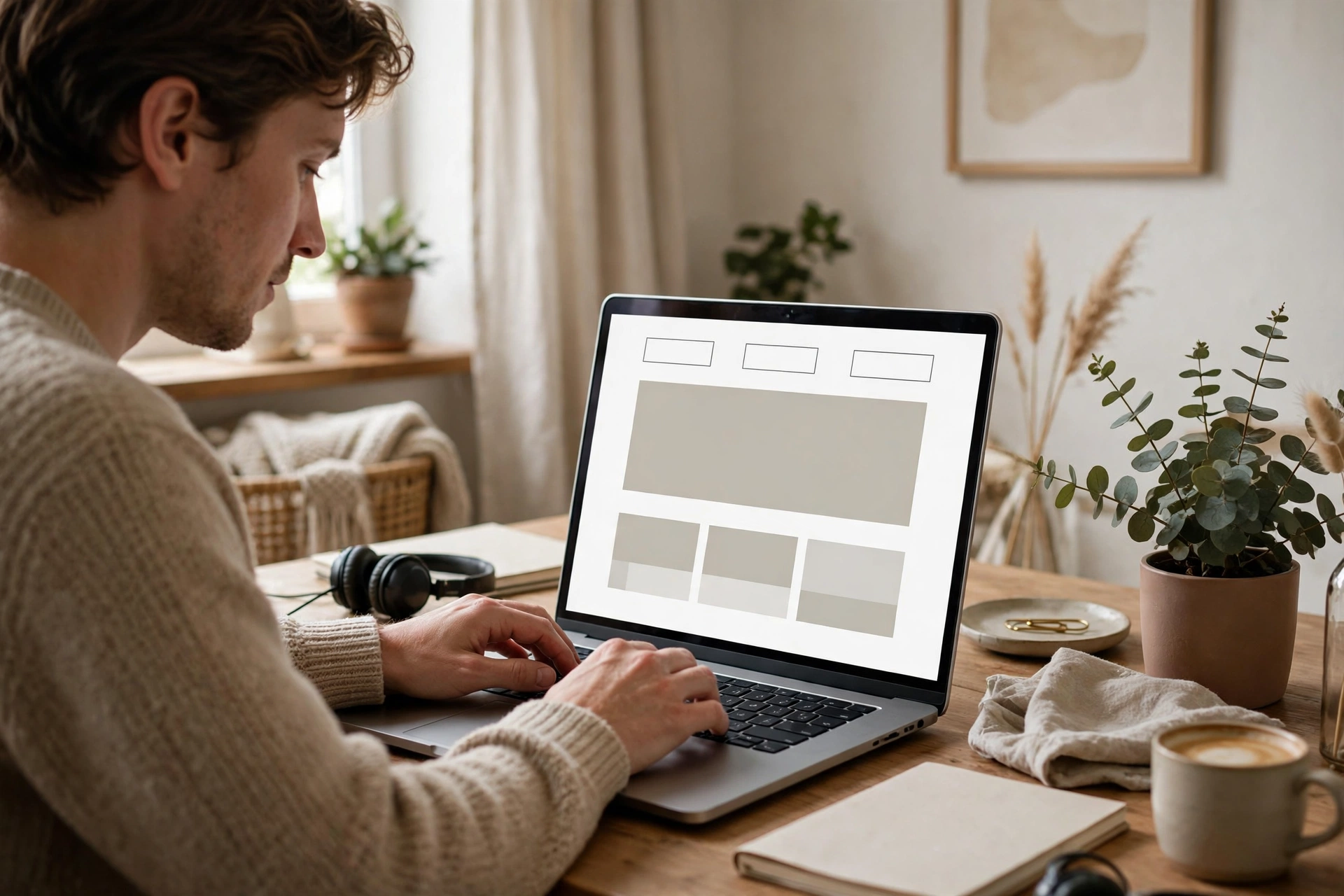
Think about your own reading habits. You open a post from Google, scan it, and if it helps you, your eyes move to the top of the page. You look for Home, About, Contact, or a topic link. If those links are missing, you rarely hunt for them. You go back.
A menu helps in three ways. It lets readers move around without effort. It shows search engines which pages matter most. And it builds trust, because a blog with About, Contact, and Privacy Policy links looks like a real site. That trust matters if you ever apply for AdSense.
Keep the menu short, though, when you decide how to add a menu to blogger for a small blog. Five to seven items is enough for most blogs. A crowded header looks messy, especially on phones, where most readers now come from. When you plan how to add a menu to blogger, plan a short menu first.
Before You Start: Plan Your Menu Items
Before you follow any steps for how to add a menu to blogger, decide what belongs in the menu. A simple starter set is Home, About, Contact, Privacy Policy, plus one or two topic links.
Topic links in Blogger usually point to labels. If you label posts about phones as “Phone Tips”, that label page can become a menu item. Just wait until a label has at least three or four posts before you promote it. A menu item that opens one lonely post looks unfinished.
You also need at least one published Page. Pages are static, like About or Contact. Posts have dates and appear in your feed. If you have no pages yet, create them first. Your theme also matters, because the theme decides where the menu can sit. Most themes place it under the header or at the very top.
How to Add a Menu to Blogger with the Pages Gadget
Blogger already gives you the tool for this job, so there is nothing to install. The Pages gadget is the standard answer to how to add a menu to blogger, and it works on most themes.
Step 1: Create and publish your pages
Sign in to Blogger, open your blog, and click Pages in the left menu. Click New Page, write your About page, and click Publish. Repeat for Contact and Privacy Policy if you need them.
Keep page titles short. “About” fits a menu better than a long title. Check that each page shows as Published, not Draft. Draft pages will not show up properly in the menu.
Step 2: Open Layout and add the Pages gadget
Click Layout in the left menu. This screen shows the blocks that make up your design. Look near the top for a Pages gadget. Some themes add it for you. If you see one, click Edit and move to the next step.
If there is no Pages gadget, this is where how to add a menu to blogger really starts: click Add a Gadget in the section under your header. Find Pages in the list and add it. The settings will open right away. This Layout step is the heart of how to add a menu to blogger, so take your time here. If the gadget lands in the sidebar by mistake, you can drag it to the top section later.
Step 3: Choose and order your menu items
In the gadget settings, tick the pages you want to show. This choice is the practical core of how to add a menu to blogger, because it decides what readers see first. Leave Home Page ticked, because readers expect a way back to the front page. Then set the order: Home first, About next, topic links in the middle, Contact near the end.
Add a gadget title only if the menu will sit in a sidebar. A top menu looks cleaner with no title. Click Save in the gadget, then save the Layout screen too. Skipping the second save is a common reason changes seem to disappear.
Step 4: Test the menu like a reader
Open your blog in a new tab and click every menu item once. Home should open the front page. About should open the right page. Nothing should lead to an error.
Then check on your phone, or narrow your browser window. Many themes turn the menu into a small button on mobile. Tap it and make sure the links open cleanly. A menu that only works on desktop is only half done. This quick test is part of how to add a menu to blogger properly, not an optional extra.
Adding Label Links and Custom Links
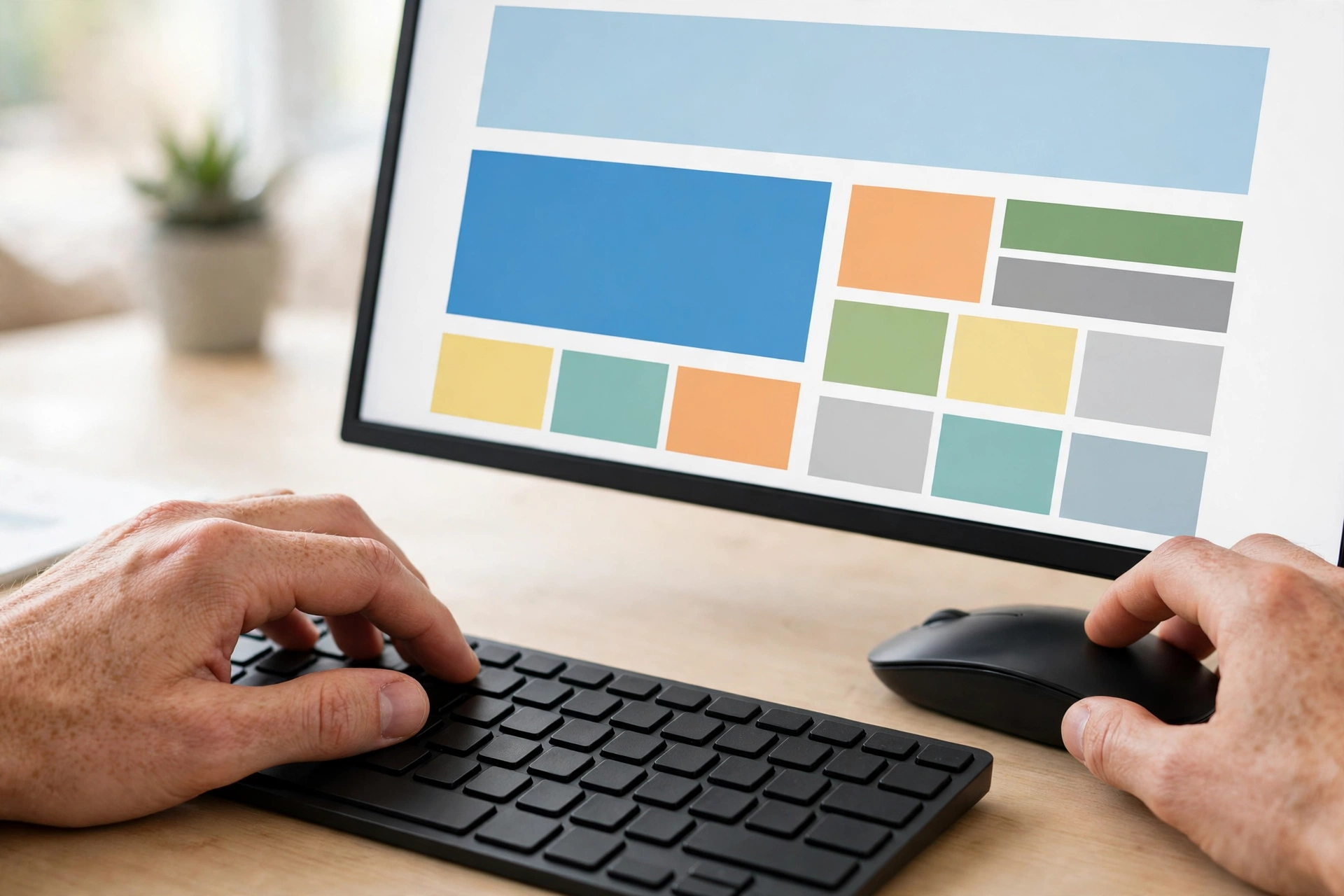
Pages are only half the story. Readers also want more posts like the one they just read. That is why how to add a menu to blogger should include topic links, not only static pages.
To add a label link as part of how to add a menu to blogger, open a label page on your blog and copy its address. It looks like yourblog.blogspot.com/search/label/YourLabel. Then go to Layout, edit the Pages gadget, and choose the option to add a new item or external link. Paste the label address, give it a short name like “Phone Tips”, and save.
The same method works for any custom link, such as a popular post or another site you own. Keep names short and honest. A menu item called “Best Deals” should open a deals page, not a random post.
While you tidy the header, our guide on how to add a logo to Blogger pairs well with this one. A logo and a menu together make the top of your blog look complete.
Menu Ideas for Different Blogs
For a personal blog, Home, About, Blog, Contact, and Privacy Policy is plenty. That simple set is often the best answer to how to add a menu to blogger for a personal site. Readers mainly want to know who you are and how to reach you.
For a tutorial blog, add your two or three main topics as label links. A Blogger tutorial blog might use Blogger Tips, SEO, and Make Money Online. For a niche blog, put your most searched topic right after Home, because Google readers often click that link next.
Whatever you choose, keep the count small. If you are tempted to add a tenth item, ask whether a reader would really click it. Usually the answer is no. A short menu is a confident menu.
How to Add a Menu to Blogger on Themes with Built-In Menus
Some newer themes include their own menu settings. Go to Theme, then Customize, and look for Navigation, Menu, or Header settings. If you find them, add your page and label links there. Theme menus often handle mobile display better than gadgets.
Dropdown menus sound fancy, but the basic Pages gadget does not create true dropdowns. Some custom themes add them with extra code. For a beginner blog, a flat menu with clear names beats a clever dropdown that breaks on phones. Learn how to add a menu to blogger the simple way first, and upgrade the design later.
If you change themes later, check the menu again right away. A new theme can move or hide it. Re-checking the menu should be near the top of your list after any theme switch.
Common Problems and Quick Fixes
The menu does not appear
Confirm your pages are Published. Most failed attempts at how to add a menu to blogger come down to this one check. Confirm the Pages gadget is saved in Layout. Then view your blog in an incognito window, because your browser may show an old cached version. If the menu still hides, your theme may block gadgets in that section. Test the gadget in a sidebar section. If it appears there, use the theme menu settings or pick a theme with a proper header area.
A menu item opens the wrong page
Check custom link addresses letter by letter. One wrong character in a label address breaks the link. Also make sure each menu name matches the page it opens.
The menu looks messy on mobile
Shorten item names first. “Contact” fits better than a long phrase. Then reduce the number of items. If the menu still wraps over several lines, check the mobile menu setting in Theme, Customize.
The order will not stay
Save inside the gadget, then save Layout as well. Refresh in an incognito window to confirm the new order. For official details on current Blogger screens, the Blogger Help Center is the safest reference, since Blogger settings change from time to time.
Habits That Keep Your Menu Useful
Knowing how to add a menu to blogger is step one. Keeping it useful is step two. Review the menu every few months. Replace topics you no longer write about with topics you publish often. Your menu should match your blog as it is now.
Keep the linked pages fresh too. An About page with an old blog name quietly hurts trust. When you update the menu, give About and Contact a quick read.
Also link menu pages from inside posts now and then. A line like “you can reach me through the Contact page” helps readers who never look at the header. If you want to know more about this site, visit the About Us page.
Final Thoughts
Learning how to add a menu to blogger is a small job with a big payoff. In one sitting you can publish your pages, add the Pages gadget, tick the right items, and add label links for your best topics. Your blog will look more finished, and readers will find more of your work.
Start simple today. If you remember only one rule for how to add a menu to blogger, remember this: short, clear, and tested on mobile. Publish About and Contact, add the menu, test it on your phone, and stop there. You can refine names and order later. A working menu today beats a perfect menu you keep postponing.

FAQ
How do I add a menu to Blogger without coding?
Use the built-in Pages gadget. Publish your pages, go to Layout, add or edit the Pages gadget, tick the pages to show, and save. No code is needed.
Can I add label links to a Blogger menu?
Yes. Copy a label page address and add it as a custom link in the Pages gadget. Give it a short name and save.
Why is my Blogger menu not showing?
Check that pages are Published, the gadget is saved, and your theme allows a gadget in that section. Test in an incognito window to rule out caching.
How many menu items should I have?
Five to seven items works well for most blogs. Fewer items keep the header clean on mobile phones.
Can I make a dropdown menu in Blogger?
The basic Pages gadget does not make true dropdowns. Some themes add dropdown support through their own settings. A flat menu is safer for most beginner blogs.
Disclaimer
This article is general educational information, not professional or financial advice. Blogger features, theme options, prices, rules and offers change over time, so please verify details from official sources before making decisions for your blog.
To learn more about the site behind this guide, visit the About Us page.